Who this guide is for
People whose iPhone storage pressure is being driven mainly by the Photos library rather than by apps, downloads, or system files.
 SwipeWipe
When Photos becomes the biggest storage problem on your iPhone, the safest move is not to delete memories at random. Start with duplicates, screenshots, similar shots, and large videos so you can reclaim space without making regret-heavy decisions first.
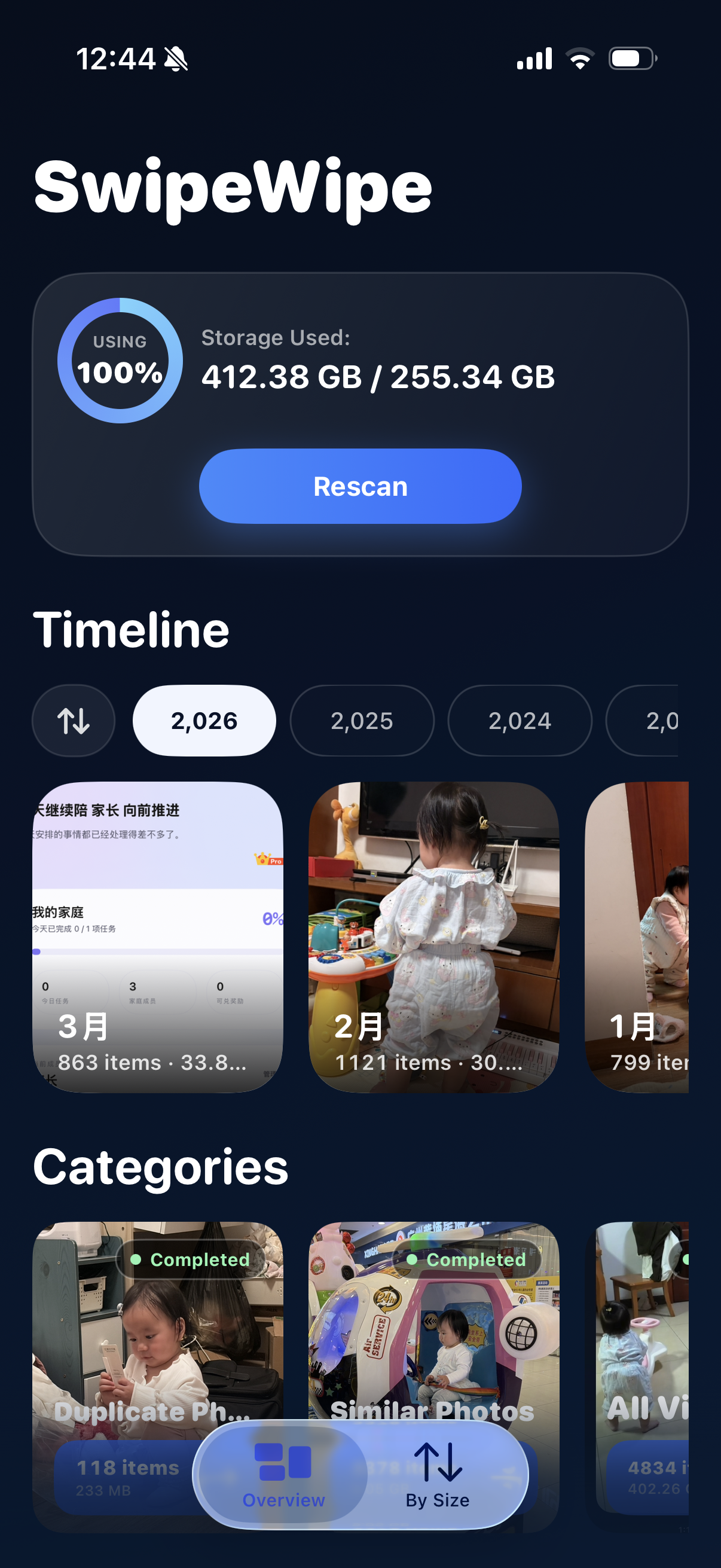
If you want the product workflow, open the storage page. If you already know which clutter type is causing the problem, switch straight to the matching product page.
People whose iPhone storage pressure is being driven mainly by the Photos library rather than by apps, downloads, or system files.
This page is optimized for low-regret cleanup order: screenshots, duplicates, similar shots, and then larger files only after the easier wins are done.
Updated April 15, 2026 to keep the storage advice aligned with the product pages and the current site structure.
If photos are taking too much space on your iPhone, start with the categories that are easiest to review: screenshots, exact duplicates, similar photos, and oversized videos. That sequence frees space without forcing you to start with the memories you care about most.
Temporary references are usually the least emotional and the easiest thing to remove fast.
Repeated copies can create meaningful storage wins without sacrificing the real keeper.
Once the obvious clutter is gone, it becomes easier to choose the best photo from each near-duplicate cluster.
A few oversized clips can free a surprising amount of space once the easier wins are done.
The Photos library tends to grow silently because every image looks small on its own, but years of clutter add up.
Camera shots, screenshots, downloads, saved chats, Live Photos, and videos all stack up in one place.
Without a repeatable system, duplicates and low-value images build up until storage pressure makes the problem obvious.
You can see that Photos is large, but not which categories are easiest to clear without regret.
A good storage-cleanup sequence begins with low-regret clutter, not with the albums you would be upset to lose.
These are not all equal, but together they explain why Photos becomes such a common storage bottleneck.
Repeated copies from edits, downloads, and imports often offer safe, immediate storage relief.
These are high-volume, low-value clutter for many users, which makes them a strong starting point.
Clusters of almost-identical shots can unlock meaningful cleanup once you are ready to compare them carefully.
Just a few oversized videos can take up more room than dozens of photos, so they are worth checking once the easy wins are done.
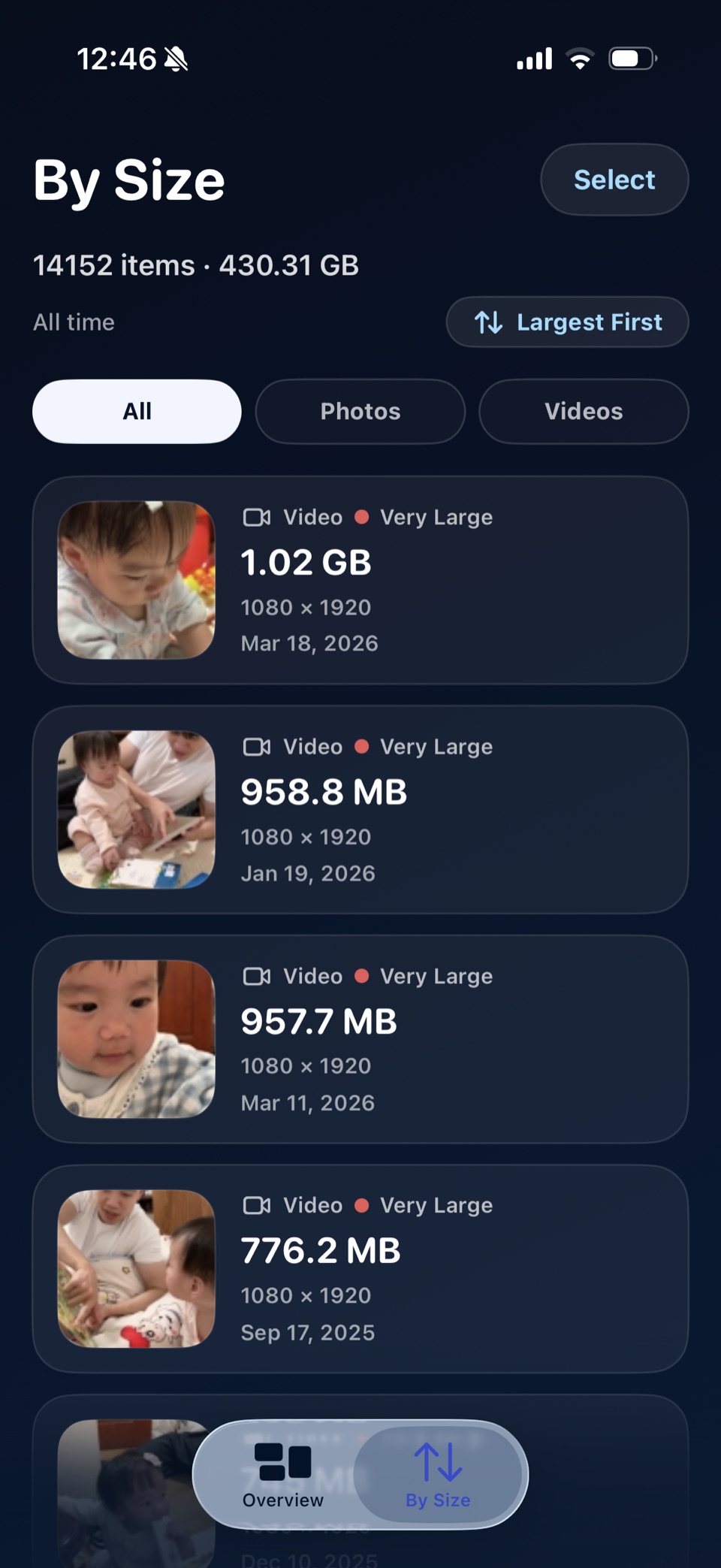
Photos often causes the storage problem, but not every storage win comes from still images. A few oversized videos can free a surprising amount of space once screenshots and duplicates are already under control.
Storage pressure makes people rush, but the first things you see are not always the safest things to remove.
Trips, family events, and milestone photos are exactly where regret tends to come from.
A large album might be important. A smaller clutter category can still be the smarter first target.
Shorter, repeatable sessions lead to safer decisions than a single panic-driven purge.
The real goal is not deleting more. It is clearing the noise around your good photos so the space comes from clutter first.
The best storage plan is one you can repeat before the next storage crisis appears.
Quick visual wins reduce clutter and make the next categories easier to face.
Take the safe wins that preserve the memory while removing repeated files.
Choose the keeper from each moment only after the obvious clutter is already gone.
Finish with the biggest files, then end the session while your decisions still feel clear.
Start with screenshots and exact duplicates. They are usually the safest and fastest categories to review.
Yes. The key is to clear low-risk clutter first and only move into similar-photo decisions after the easiest wins are done.
A few large videos can reclaim a surprising amount of space, especially if they are accidental recordings or clips you no longer need.
Open the storage product page for the full workflow, or jump straight to the matching product page for screenshots, duplicates, or similar photos.
Open the route that matches the first storage win you want to go after.