Who this guide is for
iPhone users who are seeing true repeat copies from bursts, exports, downloads, AirDrop saves, or message attachments and want a safer cleanup method.
 SwipeWipe
Duplicate-photo cleanup gets much easier once you stop searching your whole library manually. The safest method is to identify repeated copies, choose the keeper first, and only then remove the extras.
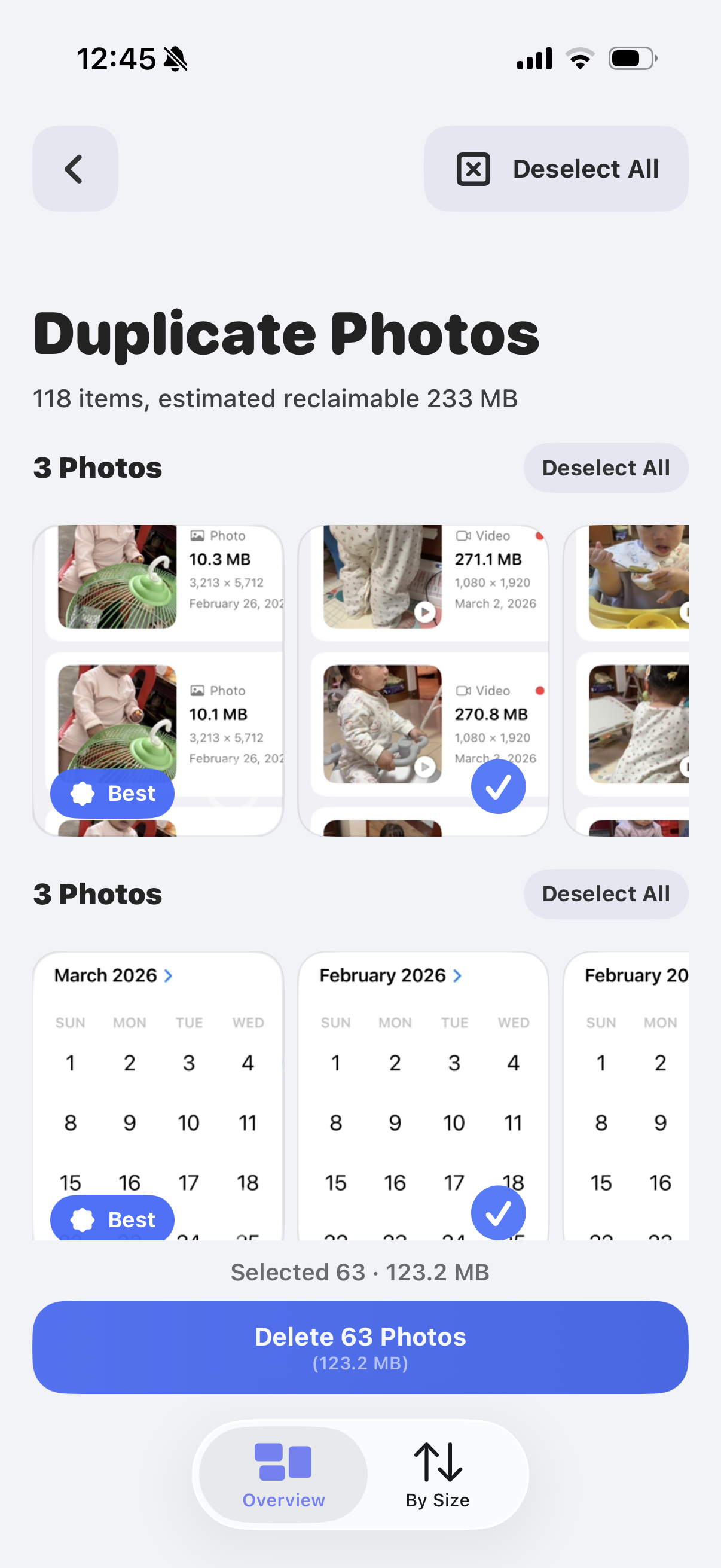
If you want the product workflow, open the duplicate page. If your problem is broader than exact copies, switch to the more relevant route below.
iPhone users who are seeing true repeat copies from bursts, exports, downloads, AirDrop saves, or message attachments and want a safer cleanup method.
This page assumes your harder problem is exact duplicates. If the photos are only almost the same, the better fit is similar-photo cleanup.
Updated April 15, 2026 to keep the guide aligned with the current duplicate-review workflow described across the site.
To find and remove duplicate photos on iPhone, surface the repeated copies first, choose the version you want to keep, and delete only the extras. That is faster and safer than manually scanning your camera roll date by date.
Start with repeat copies from imports, downloads, or bursts instead of searching the full library manually.
Pick the clearest, best-framed, or most meaningful version before you think about removing anything else.
Once the keeper is obvious, duplicate cleanup becomes a much simpler and lower-risk decision.
Small review sessions are easier to trust than one giant cleanup binge through your whole photo library.
Duplicate photos usually build up quietly from normal phone behavior, not from intentional hoarding.
One tap can produce several nearly identical frames even when you only want one final shot.
Saving an edited version or exporting through another app can create extra copies of the same photo.
Images from text threads, AirDrop, social apps, and browsers often become repeat files you forget about later.
Manual cleanup is not just about deleting photos. It is about finding them, comparing them, and second-guessing every decision.
The safest duplicate-photo decisions happen when you define the winner first.
If one copy is clearly cleaner, brighter, or better framed, make that your keeper immediately.
Sometimes the technically best photo is not the most meaningful one. Pick the version you are most likely to want later.
That order matters. The moment you know what stays, the rest of the cleanup gets much easier.
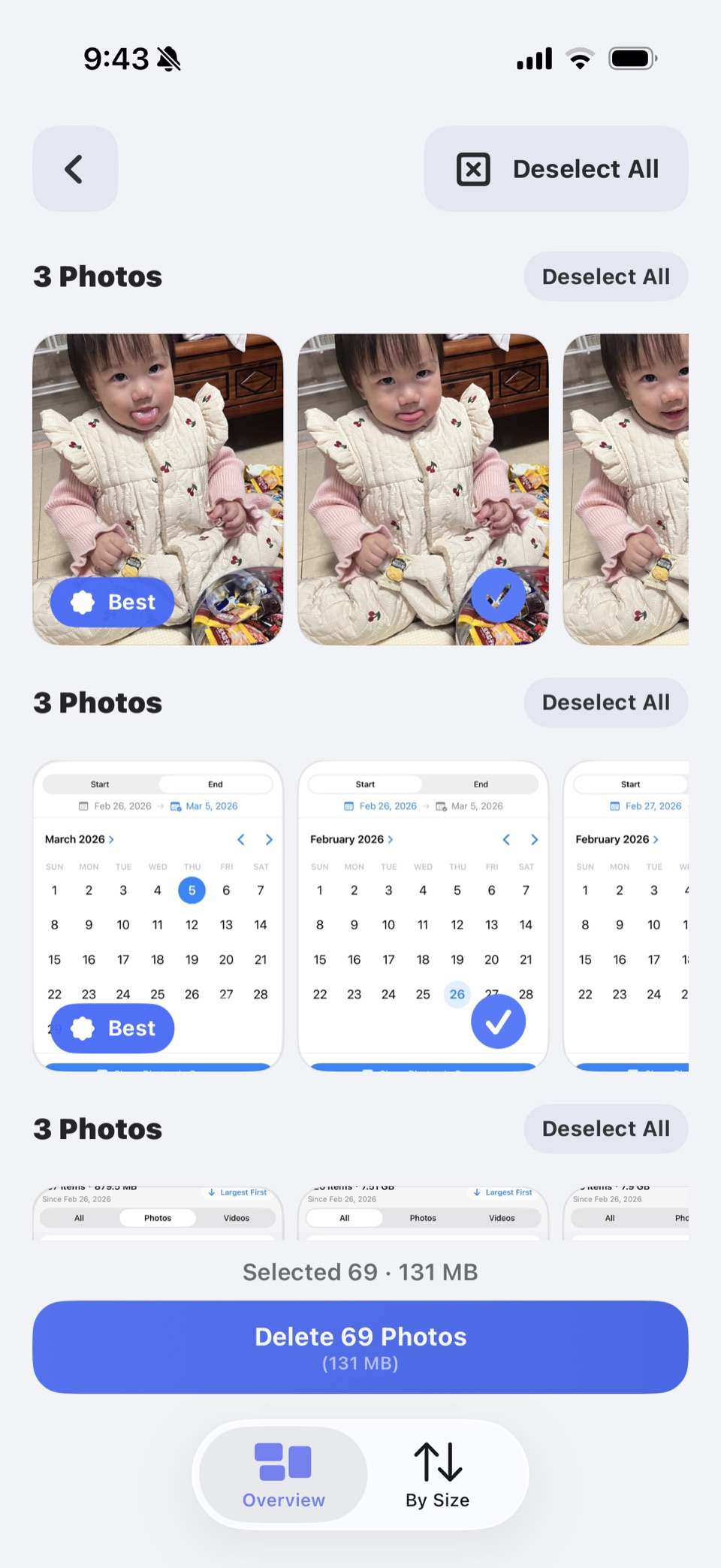
This is where a duplicate-focused workflow starts to feel faster than manual cleanup. You are not scanning your whole library anymore. You are reviewing one group, seeing the strongest candidate, and deciding with more confidence.
Most duplicate-cleanup mistakes come from rushing rather than from the duplicates themselves.
If you remove copies before naming the keeper, you create unnecessary doubt and risk.
Some clusters need more judgment. If the photos are only almost the same, move into similar-photo cleanup instead of forcing a duplicate decision.
Long sessions increase fatigue and make small visual differences harder to judge accurately.
A faster workflow does not mean more reckless cleanup. It means spending less time finding the duplicates and more time reviewing them properly.
Starting from repeated-photo clusters removes the most time-consuming part of manual cleanup.
When the likely keeper is clear from the start, the rest of the decisions feel easier and faster.
Do not keep re-opening the same group later. Finish the group while the comparison is still fresh.
Consistent short sessions usually beat one long painful cleanup marathon.
A dedicated duplicate-cleanup app becomes useful once your real problem is not the delete button. It is the time and mental effort required to find the duplicates in the first place.
Pick the photo you want to keep first, then delete only the extra copies in that duplicate group.
Because most of the time goes into finding the duplicates and comparing them, not into the actual delete action.
Then the better next page is delete similar photos on iPhone, because that problem needs more judgment than exact duplicates do.
Open the duplicate product page if you want the workflow itself, or move into the storage product page if duplicates are only one part of the problem.
Keep moving with the page that matches the next cleanup decision you need to make.