Who this guide is for
People whose easiest cleanup win is old receipts, chats, scans, maps, shopping references, and other temporary screenshots that keep piling up.
 SwipeWipe
Screenshots are one of the easiest places to start when your iPhone photo library feels crowded. They are usually temporary by nature, which makes them the perfect low-risk cleanup job when you want visible progress fast.
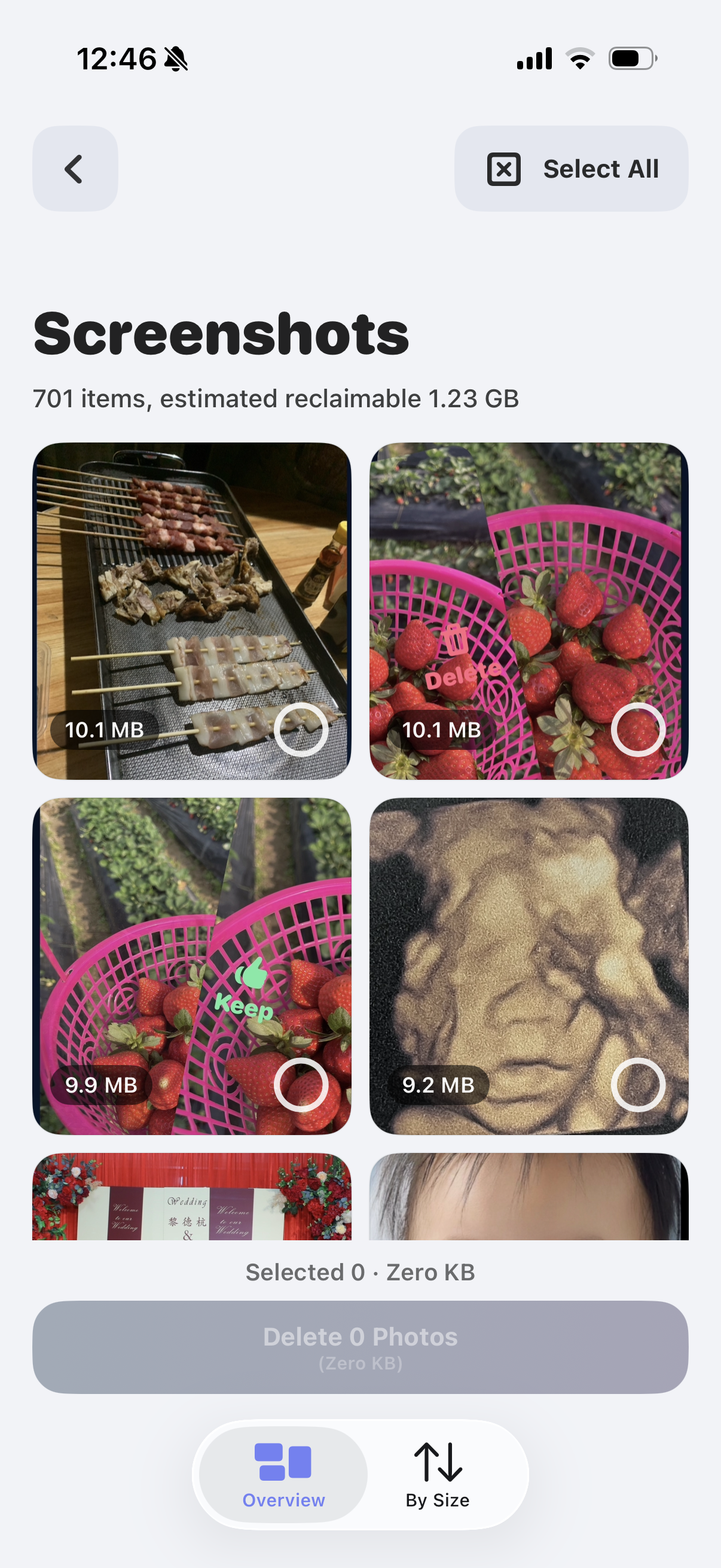
If you want the product workflow, open the screenshot page. If screenshots are only the first easy win, switch to the next product page below.
People whose easiest cleanup win is old receipts, chats, scans, maps, shopping references, and other temporary screenshots that keep piling up.
This page is about screenshot clutter specifically. If your real problem is overall storage pressure, the better next read is the storage guide.
Updated April 15, 2026 to keep the guide tied to the current screenshot-cleanup workflow and product routing on the site.
The fastest way to clean screenshots on iPhone is to treat them like disposable clutter: review them in batches, keep only the references you still need, and clear the rest before they keep piling up.
That keeps temporary images separate from the photos you actually want to preserve.
Save the screenshots that still help you and let old receipts, chats, and reminders go.
Five-minute cleanup passes work well because screenshots usually do not require careful emotional review.
Screenshot cleanup is most useful as a repeatable habit, not as a once-a-year chore.
Screenshot clutter grows faster than most people notice because each capture feels useful in the moment and forgettable a few days later.
Receipts, chats, maps, order confirmations, recipes, and product pages all turn into screenshots almost automatically.
Once the trip, purchase, or conversation is done, the screenshot often stays in your library long after its value disappears.
That makes your real photos harder to browse, even if the screenshots are not emotionally important.
If your library feels overwhelming, screenshot cleanup creates progress without forcing hard memory-related decisions.
Manual cleanup is workable when the screenshot backlog is still modest or when you only want to clear a recent batch.
Review the most recent week or month first so outdated references are still easy to recognize.
Do I still need this information? If the answer is no, it is probably safe to delete.
Keep screenshot review separate from real photo review so the job stays fast and easy.
Once screenshots are spread across months or years, the real bottleneck becomes finding them and staying focused on them.
That keeps the decision simple: you are only judging temporary references, not real camera-roll moments.
Most screenshots can be kept or deleted in seconds once you stop seeing them among everything else.
After screenshots, it is much easier to move into duplicates or broader storage cleanup.
The best workflow is short enough that you can use it again before screenshot clutter becomes a problem.
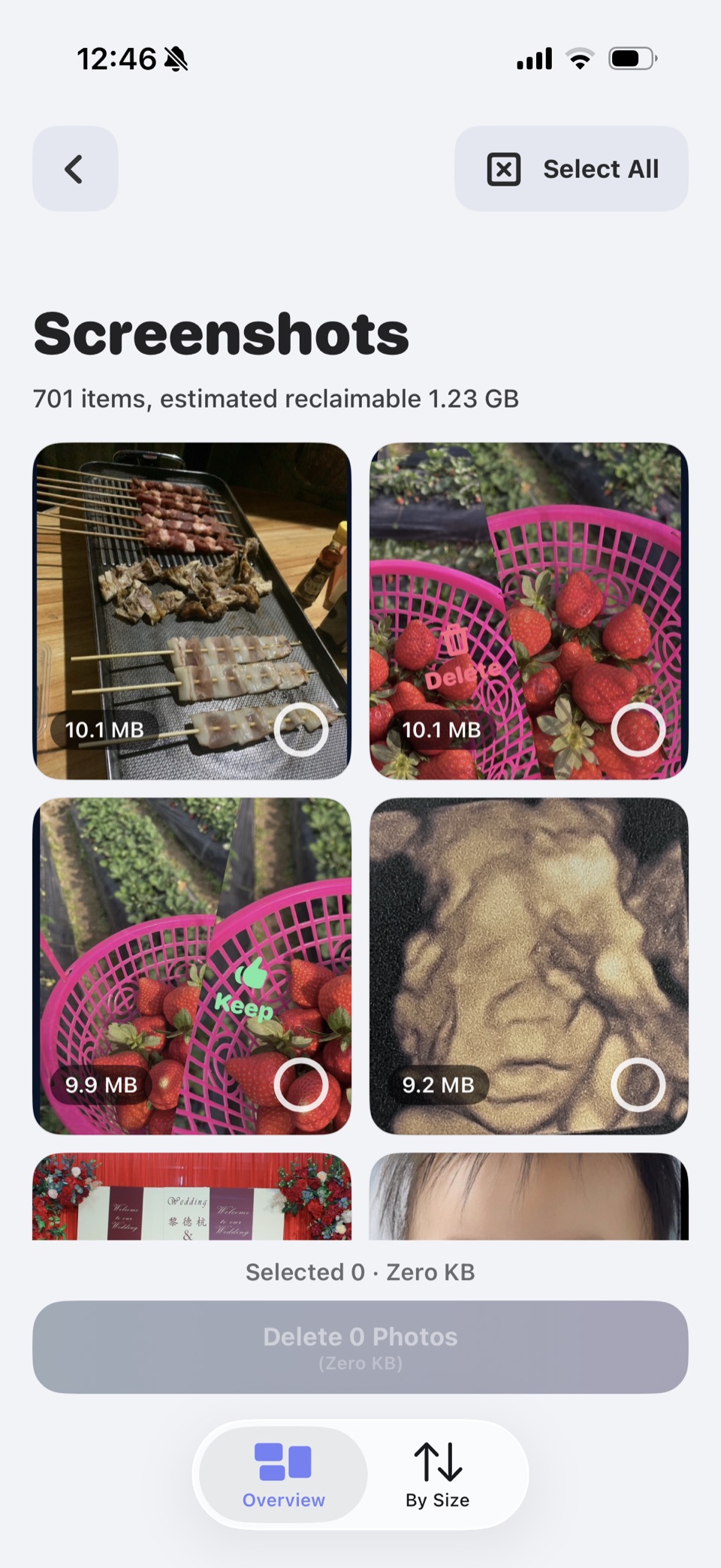
A screenshot-specific review screen keeps the decision simple: keep the few references that still matter and remove the rest while you can see the potential storage win right away.
Some screenshots are small, but the category still matters because it removes clutter quickly and often leads to more focused storage cleanup afterward.
Large screenshot backlogs still take up room, especially when they include long chats, scans, and image-heavy saves.
With fewer temporary images in the way, it becomes much easier to spot duplicates and similar shots next.
Quick wins matter because they reduce the feeling that the whole library is an impossible project.
If your screenshot clutter spans months or years, a dedicated review flow is usually much more practical than manual scrolling.
Review screenshots as their own category, keep only the ones that still matter, and clear them in short focused batches instead of mixing them into your full photo library.
Yes. They are one of the easiest first targets because they are usually temporary and less emotionally important than real photos.
Yes. It helps directly by removing clutter and indirectly by making the next storage wins, like duplicates, much easier to spot.
Open the screenshot product page for the product route or move into the storage product page if you want the broader space-recovery path.
Keep the cleanup going with the page that matches your next low-risk win.