 SwipeWipe
Safer cleanup guide
How to clean up iPhone photos without deleting important memories
The safest way to clean up your iPhone photos is not to start with your favorite albums. Start with low-risk clutter like duplicates, screenshots, similar shots, and oversized videos so cleanup feels controlled from the beginning.
Best next steps
These are the cleanup routes that keep the job feeling safe instead of random.
Quick answer
If you want to clean up iPhone photos without deleting important memories, move in this order: screenshots, exact duplicates, similar shots, then storage-heavy videos. That sequence removes clutter first and saves emotional decisions for later.
Start with the easiest clutter
Old screenshots and throwaway saves are usually safer to remove than real photos from trips, family moments, or milestones.
Remove exact duplicates
Deleting copied or repeated versions is one of the lowest-risk ways to create space while keeping the real keeper.
Review similar shots carefully
When several photos capture the same moment, choose the best one first and delete around that choice.
Work month by month
A timeline-based pass is easier to trust than one giant cleanup binge across your whole camera roll.
Why photo cleanup feels risky
People rarely avoid cleanup because they do not care. They avoid it because every delete decision can feel like a tiny bet against future regret.
Memories are mixed with clutter
Your best photos live in the same library as screenshots, downloads, burst leftovers, and accidental repeats.
Everything looks important in the moment
When your library is crowded, it gets harder to tell the difference between a keeper, a backup copy, and a photo you will never revisit.
Storage pressure makes people rush
Low storage often turns cleanup into a panic task, which is exactly when random deletion feels most dangerous.
Start with low-risk clutter first
The safest cleanup strategy is to remove what you are least likely to miss before you touch meaningful albums or one-of-a-kind moments.
Screenshots
- Receipts, maps, chats, and shopping references usually lose value quickly.
- That makes screenshot cleanup one of the best first cleanup wins.
Duplicates
- Imported copies, downloads, and burst leftovers are often pure extras.
- Duplicate cleanup lets you learn the rhythm without risking your favorite version.
Similar shots
- These take more judgment, but they become easier once obvious clutter is already gone.
- Start with the best shot, not with the photos you are trying to delete, especially when you move into similar-photo review.
In The App
A safer cleanup flow starts with seeing the whole library clearly
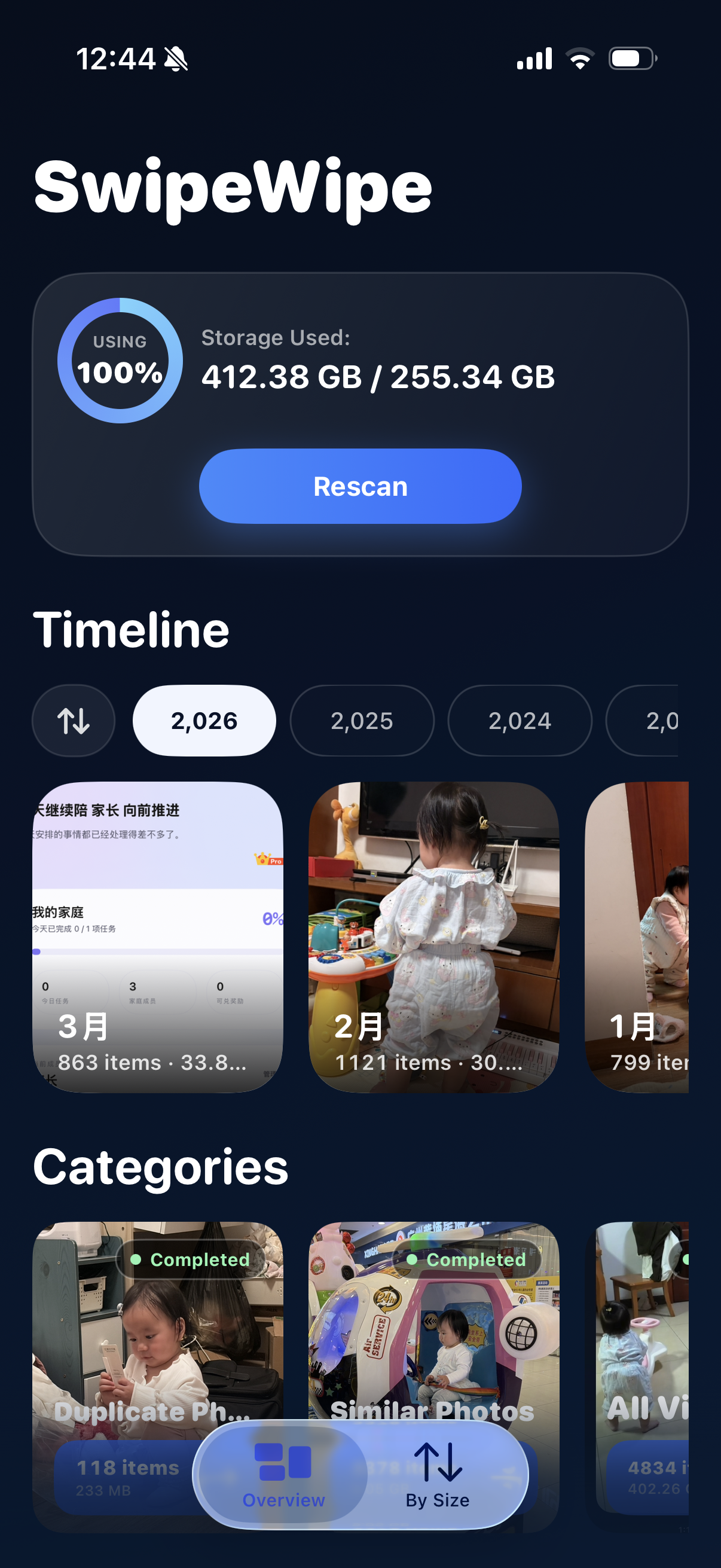
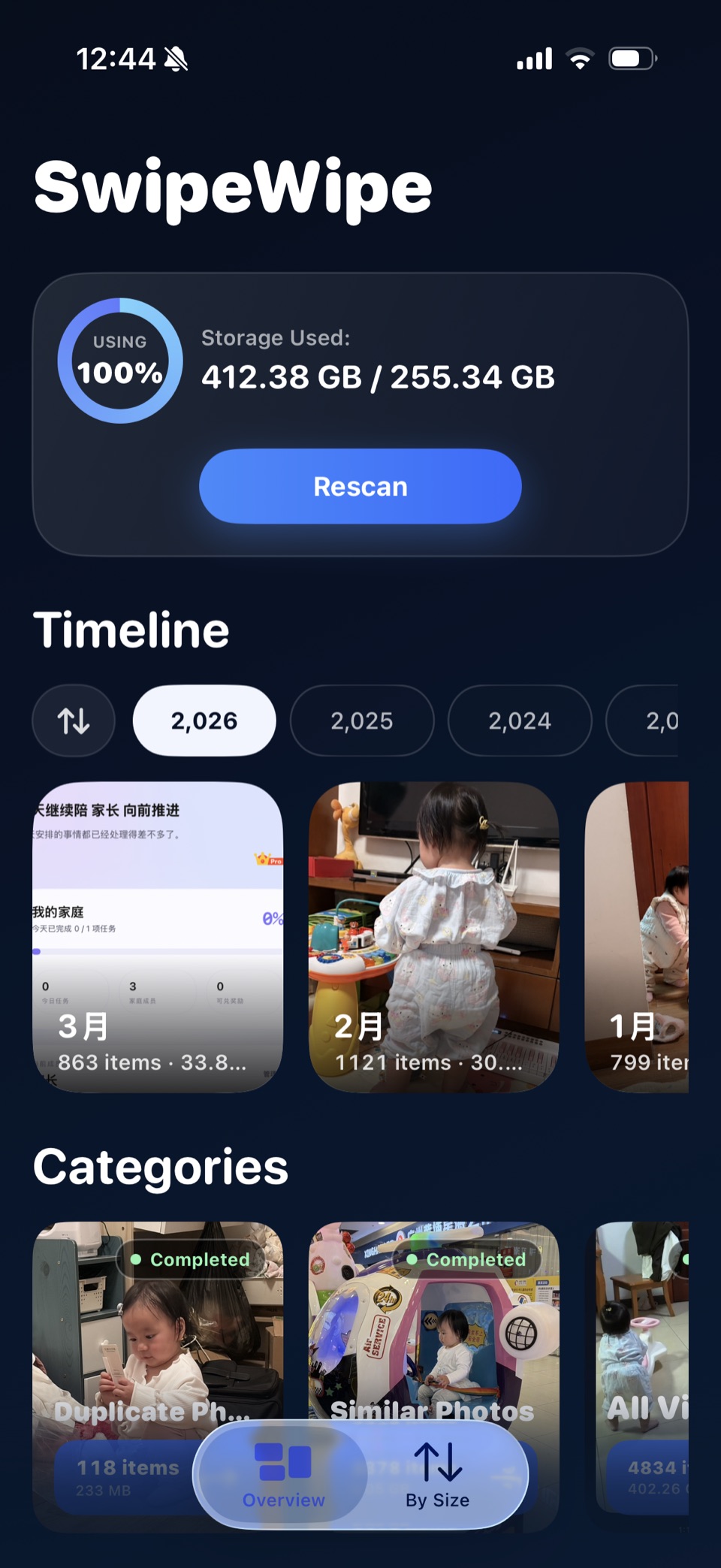
The most helpful cleanup tools do not force you straight into deletion. They show where the pressure is coming from first: overall storage, the timeline, and the main clutter categories that are safest to review.
- See how much storage your library is using before you start deleting.
- Move from timeline review into duplicates, similar photos, or screenshots depending on the real problem.
- Keep the job feeling structured instead of random.
How to review duplicates and similar shots safely
Duplicate cleanup is safer than it looks when you make the decision in the right order.
Pick the keeper first
Look for the sharpest, best-framed, or most meaningful version before you think about removing anything else.
Compare like with like
Group near-identical shots together so you are choosing within one moment instead of jumping across unrelated dates.
Stop before fatigue sets in
Ten good decisions are better than one long session that ends in second-guessing or accidental deletes.
Why screenshots and large videos are easier cleanup wins
If your goal is to make space fast without emotional risk, these are often the smartest categories to review before anything sentimental.
Screenshots are low-regret
Most screenshot clutter was meant to be temporary, so removing it often feels cleaner and safer than touching your real photo timeline.
Large videos free space quickly
A few oversized clips can reclaim more storage than dozens of photos, especially when they were test recordings or accidental long captures.
Both create momentum
Quick wins make it easier to keep going, which matters when you have been avoiding cleanup for months.
A month-by-month cleanup method
Timeline-based cleanup feels lighter because you are dealing with one slice of your library at a time instead of the whole thing at once.
Open one recent month
Start where the memories are still fresh enough that keeper decisions feel easier.
Clear obvious clutter first
Move screenshots, exact duplicates, and throwaway saves out of the way before you touch the harder photo groups.
Review similar moments slowly
Choose one or two winners from each cluster and let the rest go only after the keepers are clear.
Stop with a clean exit point
Ending at the end of a month makes it easier to come back later without losing your place.
When a photo cleaner app helps
Manual cleanup works for small batches. A dedicated app becomes more helpful once the library is large enough that finding the problem takes longer than reviewing it.
It reduces the search work
- You start from duplicates, similar photos, or screenshot groups instead of hunting through the camera roll manually.
- That makes the job feel less chaotic immediately.
It keeps review close to the decision
- You can see what stays before you decide what goes.
- That is especially useful when the real blocker is fear, not just volume.
It supports repeatable cleanup
- Short sessions are easier to maintain than waiting for the next storage emergency.
- That makes the library easier to trust over time.
Quick Demo
What a guided cleanup session looks like
A short product walkthrough helps show why a guided workflow feels calmer than manually bouncing around the Photos app.
A quick look at the overview and cleanup flow inside SwipeWipe.
Start from the overview
See storage pressure, timeline access, and your cleanup categories in one place.
Choose the lowest-risk win
Move into screenshots, duplicates, or similar shots instead of guessing what to delete first.
Keep momentum
The flow is meant to make cleanup easier to repeat, not just easier to start.
FAQ
What is the safest thing to delete first when cleaning up iPhone photos?
Screenshots and exact duplicates are usually the safest places to start because they are low-risk and easier to review than sentimental albums.
Should I clean up my whole photo library in one sitting?
No. Month-by-month sessions are easier to trust and much less likely to end in fatigue-driven mistakes.
What if my main goal is to free up storage?
Then open clean iPhone storage, which turns low storage into a practical cleanup sequence.
Can a photo cleaner app help without taking control away from me?
Yes. The useful ones help surface the right cleanup categories faster while still letting you review before you delete.
Related pages
Use the page that matches the kind of low-risk cleanup you want to do next.